Piano-Key Shapes in MIDI Designer 1.5

MIDI Designer 1.5 introduces several new button features.

Set It Up

  1. Make a button
  2. Change its display type to ‘Piano C/F’ (there are a few others)

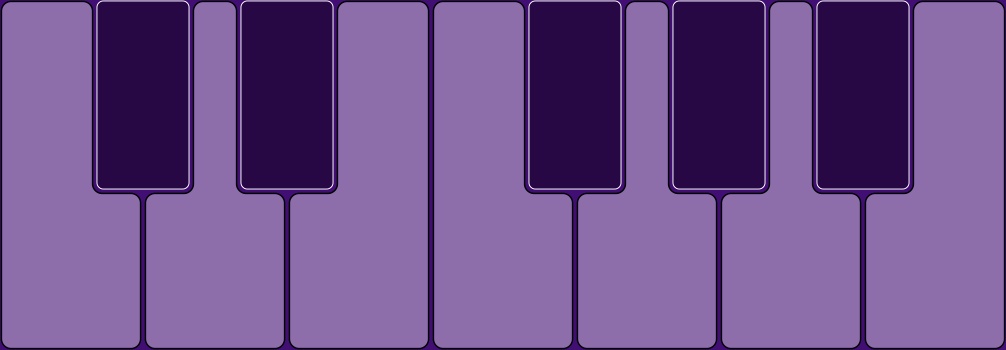
Piano Key Display Option

Optional

  1. Change its MIDI Message type to Note-On/Note-Off
  2. Change its type to “momentary”
  3. Hide its label (either change it to nothing, or use “Hide Label” in the label properties)

Notes

  1. Don’t make several and then size them. Make one and then use make-similar
  2. You can use the “Drumpad” type for position sensitivity.

Stubby Piano Keys

Crossfader Overlap

Note: In 1.5.0 and greater, this is under Relationships -> Subcontrol Options.

Crossfader Overlap is an extension of “crossfader pieces,” which has been a feature of MIDI Designer since version 1.0. You can see that in this video, which is how I fade to a speech track and back:

So the basic idea is that one knob gets spun up to its max, and at the midpoint, another knob starts dropping.

In the past, you set this up by setting each subcontrol be a “crossfader piece,” one of which is also “inverted.” This gives you a linear crossover at 50% of the range of the supercontrol.

For our lighting users, this wasn’t enough, and they asked for crossfader overlap. It’s all linear still (for now), but it gives you some options. Now you can set the overlap to anything from .25 to 1.0. This produces a crossfade that looks like this. Note: Your old crossfader pieces will be changed to .5, which is the standard crossfader overlap.

Setup is almost identical: where “crossfader piece” was located, now there’s “crossfader overlap”:

Here’s an advanced use of crossfaders:

Advanced Use of Crossfader Overlap with 4 Mics on a Field

But the takeaway is always the same: if you want it, you’ve got more flexibility and power for your rig.

Through The Fog: A and B

I’m working on rig design tonight for my own drum rig, which includes MIDI Designer (of course), Maschine, Ableton, and Guitar Rig. What I’m trying to do with my rig isn’t hit all the possibilities. In fact, I’m trying to find “a way through the fog” by simplifying.

For instance, I can apply effects to each drum, to each kit or to the whole mix. The first two of these options are too fine for me (since I play 8 kits at once) and the last one is too coarse. What I want is to be able to control what goes through which effects, but without getting lost in a sea of different effects chains.

The answer, for me, is one that I’ve come back to over the last two years a lot. It’s always the same: “Copy from DJs.” So I make A and B effects chains (which actually get joined later on and put through a Korg Kaoss pad), and routing matrix with buttons to route the drum kits to one, the other, or both.

This is exciting because it means that I can get back to some of the features I most love about MIDI Designer: those that refer to an A-B rig.

Copy A to B/B to A

In MIDI Designer, you can copy values from one set of controls to another. What this means is that if you’ve got your A chain set up with distortion on, and reverb configured in a particular way, you can COPY that to your B chain, and then change reverb and add, say, beat delay. And now you can crossfade between two effects chains that are similar, but different.

There are two relevant controls for this. One to define the B control of a control (must be on the same page, but only to set it).

And the buttons that push A values to B and vice versa.


Crossfader

Crossfaders are very particular, because they move two knobs. In the simplest case (linear, which is all we do for now) one of the knobs goes from min to max at the halfway point and stays there. The other one goes from max to min, but doesn’t start until you reach mid-turn. MIDI Designer allows you to do with any two knobs.

Now to be fair, every DAW (or at least Ableton, which I know best, and Reaper) will allow you to do some kind of crossfade. But this is a unique thing, because you’re actually building a crossfader out of parts… which you can use for other things.

I’ll need to do a video on how to set up a crossfader very soon. (In the meantime, the answer is: make the two knobs subcontrols of a third control, make one of them subtype “inverted” and make them both crossfader pieces. )

Concluding Remarks

Anyway, my original point was that in my rig I’m not trying to have all possibilities. Many times I’m trying to limit how many controls I can adjust, so that My rig is playable. This is not the only aesthetic with which you can use MIDI Designer, and I’ll do an article on User #1’s vision of MIDI Designer sometime soon.

Thanks for reading and thanks for checking out MIDI Designer!


1.3.5 is Almost Out The Door

1.3.5 is feature-complete and I’m moving my main focus over to testing. This version is really special. It unlocks so many limitations of MIDI Designer that new users will be ecstatic, and current users will blown away.

What’s the big deal?

  • Features and fixes have been added to accomodate two-way MIDI hardware. For instance, users may use a Behringer BCR2000 as an external MIDI controller for MIDI Designer. See the Ultimate Hybrid page for more information.
  • LED Colors (affecting all controls, including button-on color) are now selectable per page. With 256 choices the newest MIDI Designer lets you make beautiful pages that are easy to recognize.
  • Sliders, crossfaders and buttons are now aspect-ratio free and can be huge, tiny or anywhere in between. Most controls have a new design and all are 100% Retina display ready.
  • Name labels are independently sizable (and supersizable).
  • New, fixed-width LED font used in many parts of the app.
  • Automatic reverse colors on Page Tabs, name labels and buttons for darker page colors.
  • Labels now sit behind all other controls, allowing for watermarks and other effects.
  • Panes are back! They sit behind labels, and have no border so you can combine them in interesting geometric shapes.

And much, much more…

I’m focusing on getting this version tested, bulletproof and ready for the App Store. Once that happens, I’ll be getting back to playing with MIDI Designer, making videos, twittering (I don’t “tweet”) and explaining MIDI Designer to a wider audience. 1.3.5 promises to be a historic moment for universal MIDI controllers.

Thanks for your patience and interest. A full listing of all new features and fixes is here.

Edit (May 18, 2012): During the alpha testing phase, I decided to remove the “watermarks” feature from this release. In lieu of this, labels now always sit behind controls, giving a meaningful way to label parts of your pages.

Map One Button to Play and Stop in Ableton Live

User wrote me today:

i’ve another question
is it possible create a button that pressed once (turned to red) press “play” in Ableton Live, unpressed, press “stop”?

Sure! I never thought of that, but MIDI Designer allows for a lot of things I hadn’t thought of.

First, make three buttons and one knob like this:

Then use the button group feature to make the knob step through the two buttons at the top. Do this by making the knob a supercontrol, and then giving it two subcontrols: stop and play (in that order, though you can reorder.

Now when the play button comes on, it turns the little play button on. Otherwise it turns the little stop button on.

Then make the big play button a supercontrol of the knob. That play button will just toggle the knob to its max (on) and min (off), which happens to be the little play button (on) and the little stop button (off).

Then I finished this post and I realized that I hadn’t actually tried this out myself with Ableton Live. So when I finally did, it was impossible to map, because I’m always sending out two commands at once (stop-play or play-stop). So I temporarily shut off the knob’s “supercontrol” button, mapped up in Ableton, and put it all back together:

This works! Now you can move the “guts” of the thing behind the big button:

Now when the big button is red, Ableton is playing, and when it’s dimmed, Ableton is stopped.

Perfect! Grazie della domanda, Italia!

MIDI Designer, Ultimate Hybrid

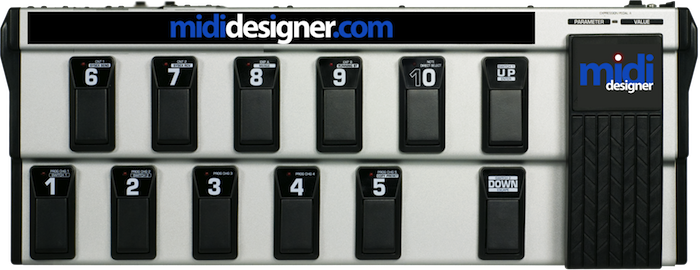
Note: Production of our own pedalboard is not on the MIDI Designer roadmap… yet. Luckily there are quite on a few on the market that we like, such as the Line6 FBV Shortboard MKII and the classic Roland FC200.


The Pedalboards feature of MIDI Designer is what makes MIDI Designer a true hardware-software hybrid. New complete article on the Pedalboard feature of MIDI Designer is here.

Also check out the rough-cut video:

Channel Changer Feature Explained

MIDI Designer introduces Channel Changers in version 1.3.

Make a multifunction control by using more than one MIDI channel. One knob controls the channel for its subcontrols.


Example

“Knob Q” controls “Wah Filter” on Channel 1, CC 42 and “Delay Feedback” on Channel 2, CC 42. “ChChger” is the supercontrol that makes Knob Q switch between functions. Knob Q will snap to its last value for “Wah Filter” and “Delay Feedback” when you switch the channel.

Set It Up

Make a knob, slider, or cross-fader a “channel changer.” Now it’s a supercontrol. Add some subcontrols and that’s it. Automatic and easy.

Check this Q&A answer for detailed instructions (on iPhone, but they’re the same).

Use It

Change the value on the knob to change the channel on the subcontrols. They snap to their previous value when they were last on that channel.

Extensions

This works for sysex (0-127) as of MIDI Designer 1.5.0 (Released April 15, 2013), too.

In the Manual

Check the manual entry here. Note: this feature is closely linked to “Presets for Groups”